 |
|
Printing Guide
Printing to both Printer and Files
With TaxGst you have the ability to print your main reports and invoices… to either a printer or to the hard drive.
For Example:
Printing to the hard drive - You would choose to print to the hard drive if you were going to be issuing an invoice to a client and you wanted to attach that invoice to an email and send it directly over the net.
TaxGst will save the file in .rtf (rich text file) format.
These files are saved automatically to your “My Documents” Folder and can easily be opened by most word processing programs.
If you, or your client does not have a word processing program, there is no need to run out and purchase one. Simply go to http://www.openoffice.org and download the openoffice suite from their site. This software is free of charge, and is fast becoming the software of the future.
When saving the invoices to a file in the .rtf format you do loose some of the gloss factor of the invoice. The invoice will loose some of the layout and will appear as a plain standard invoice. But we believe that having the ability to save to a file to enable emailing far out weighs the loss of some of the gloss.
This can be overcome if you have a program installed which allows you to print to a pdf file - see below
Printing to a PDF
NOTE: Your Windows Operating Systems allow the ability to change your default printer.
If you are using TaxGst and you have a program installed on your pc which allows you to print to a PDF File, then you could change your default printer settings. You will notice a printer selector appear at the top of your invoices which will enable you to change your default printer.
This would mean that when printing a report your pc will print in PDF Format which will mean that you will loose non of the invoice or report layout (as happens when you print to an rtf file - as above)
Print Invoices to and .rtf file
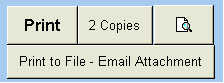
When you click to create or edit an invoice you will notice that you have the choice to print your invoices to a printer or to a file.
If you click on the bottom icon (“Print to File – Email Attachment”) TaxGst will print the Invoice to a file on your harddrive..
Each time TaxGst prints to a file, the software will automatically send the file to your “MyDocuments Folder”
The name the software gives the file is the name of the item and the number.
For Example:
If you were going to Print Invoice Number 121 to a file, TaxGst would save the file as Invoice 121.rtf
This means you would be able to attach it to an email and send it direct to the client.
5 Businesses
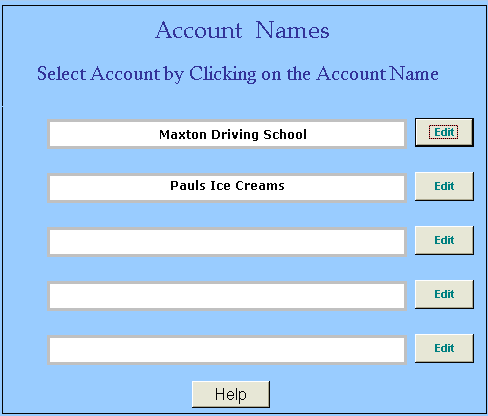
In TaxGst you can run up to 5 Businesses or sets of books at one time. If you were to click on the name of your Business on the main screen it would bring up this box:
When TaxGst saves an Invoice, it will save it as:
1 Invoice 35.rtf
2 Invoice 35.rtf
The number at the front of the file coincides with the place the business exists on the Account List. If Maxton Driving School was going to print an invoice it would start with the number 1. If Pauls Ice Creams was going to print an invoice it would start with the number 2, as the business exists on line number 2.
The only reason it does this is in case you are running more than one business and just happen to print out an invoice for each business which has the same invoice number. So as to not confuse the issue, you will be able to tell at a glance which invoice was belonging to which business…
Main Reports
Apart from the Invoices, some reports can also be sent to a file. These reports are those which are available when you click on the “Reports” Icon from the Main Screen.
When you select a report the screen will appear, at the top left of each report you have the choice of printing direct to the printer or printing to a file. The icons are clearly displayed:
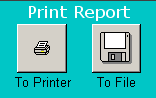
If you select to print to a file the software will bring up a pop up box requesting a file name. A default name will be given to the file, you can keep this name if you choose and click ok to continue, or you can rename the file.
The default name provided by the system is simply the name of the report which is coded into the software, so in some cases this may not be applicable and you will want to change the name.
The pop up box that appears on the screen illustrates that the software has chosen the destination to save the file, this being the “My Documents” Folder. You can also change this location if you choose.
You can also change the name of the file, BUT you must ensure that you retain the .rtf at the end of the file. Eg.. ProfitAndLoss.rtf
Whilst renaming the file you may accidentally delete the .rtf in the process. This is nothing to be concerned about, just add it at the end of the file name when you have finished typing.
The .rtf is required by your windows operating system, as this instructs the pc to use the software program which opens up these types of files. Without the extension of .rtf the pc will not know how to open the file.
Please note that the same possibility of printing to a PDF File exists as discussed above.
Tax Gst Accounting Software