 |
|
Backing Up and Restoring your Accounting Data
Backing up your data is the MOST important step any small business can do. Not only should you backup your accounting data at regular intervals, but you should also backup all your other business data as well.
I have learnt the hard way the importance of backing up. Don't get caught out when your pc eventually crashes and your hard drive become corrupted. It seems to be a fact of life that nothing last for ever, and electronics eventually fail and they always seem to fail at the most inconvenient times.
I now always backup to at least 2 separate locations. First I copy all my data to an external drive, then I burn a second backup of the most important information to a cd, call me paranoid, but I will never get caught again, having been burnt several times and lost countless amounts of data in the process.
How to Backup Your TaxGst Data
Video
Click this link to view a video showing the TaxGst Backup Process
Step By Step Overview
Backing up is simple, just select the backup option from the start menu:
 |
Next you will be presented with a screen that looks like this:
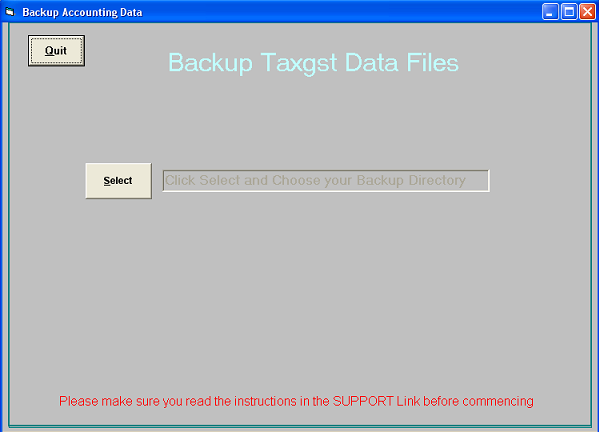
To commence the Backup Process, Click "Select"
Next you will be presented with a screen that looks like this:

This is where it can get a little tricky if you are not fully conversed with your pc.
What you need to do now is to tell the software exactly where you want to save your data files.. You will be instructing the pc of the location where you want a copy of your data files to go. In most cases this will be either another drive and/or another directory.
If you have an external device, such as a usb thumb drive, then the first thing you will need to do is to select the drive letter of your thumb device.. This is done by selecting the drive letter from the small drive letter box.. If you look at the image above you will notice the small box is the one with the first arrow ---->
Once you select the drive you need to select the directory from the big box.. However you need to do this by double clicking with your left mouse button... If you only click once it will not work..

YOU MUST Always double click on the folder where you wish to save the data to. You will know if you did this correctly as the Drive and Folder Location will appear in the top box.

That's It, All I need to do now is to click on the Commence Icon and the TaxGst Data Files will be backed up. The Commence icon usually will not appear until you have selected the directory by double clicking on you left mouse button.
The TaxGst Software will take care of everything for you and it will send a copy of your data files into the location you select.
In my example above it will send a copy of my data files to E Drive in a Folder called Data Backup
Remember that with TaxGst Series 1 only 2 Data Files are backed up
| Data.mdb and DataPay.mdb | The original Data Files with the Standard Version |
| Data2.mdb and DataPay2.mdb | The original Data Files with TaxGst[2] |
With the new Series 2 up will now have 3 Data Files
| DataNew.mdb | Additional Data File with the Standard Version |
| DataNew2.mdb | Additional Data File with TaxGst[2] |
Restoring Your Data Files
Video
Click this link to view a video showing the Data Restore Process
Step By Step Overview
Restoring your Data Files is almost the same process as backing up..
What you need to do is to Select the item from the menu - "Taxgst Restore"
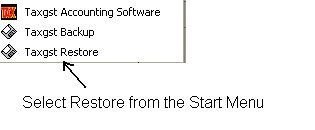 |
This screen will appear - you will know you have selected the right command as this screen will look similar to the backup screen except it will say "Restore"

The process from here is almost the same as the backup steps above.
You simply click the "Select" Icon
Then select the Drive and Folder Location where your data files are..
So if for example you are using a usb thumb drive and you previously backed up (copied) you data files to this device, then you need to instruct the software of the drive and subdirectory of the thumb drive...
Once you have selected the location the Commence Icon should appear.
Simply click "Commence"
Remember that you are telling the software where it can go to find your files.. In my example above I backed up (saved) my data files to E Drive in a Folder called Data Backup. So to restore my files I am going to tell the software to go to E Drive in a Folder called Data Backup.
So as you see there is almost not difference between backing up and restoring except when you restore you select the Restore Feature.. The TaxGst Software will then take care of everything for you and will restore you software with copies of the Data Files found in the location where you told it to look
Manual Backup and Restore
The Backup and Restore process that comes with the TaxGst Software is unable to copy your data files to a CD. You will need to use your CD Burning Software to carry out this activity.
You could also manually backup your data files to any location instead of using the process that comes with the software, the choice is yours.
The Data Files are located in the Program Subdirectory
Series 1 of TaxGst
The two files to backup are called..... data.mdb & datapay.mdb
These two files are found in this directory c:\Program Files\LCTaxtime.
If you using TaxGst[2]
Your files will be located in this directory: c:\Program Files\LCTaxtime2
The two files to backup are called..... data2.mdb & datapay2.mdb
Series 2 of TaxGst -- The new Series of TaxGst
The 3 files to backup are called..... data.mdb & datapay.mdb & datanew.mdb
Can be found in this directory c:\TaxGst\Accounting1
If you using TaxGst[2]
The 3 files to backup are called..... data2.mdb & datapay2.mdb & datanew2.mdb
Can be found in this directory c:\TaxGst\Accounting2
| By Downloading or Using this Software it shall be deemed that you have agreed with the software Terms and Conditions. |